Photos, videos & files
Your most personal things, together in one private space.
A LITTLE SPACE. JUST FOR YOU.
A private home for your photos, videos and files. Encrypted on your iPhone. Opened with your pattern.
Your most personal things, together in one private space.
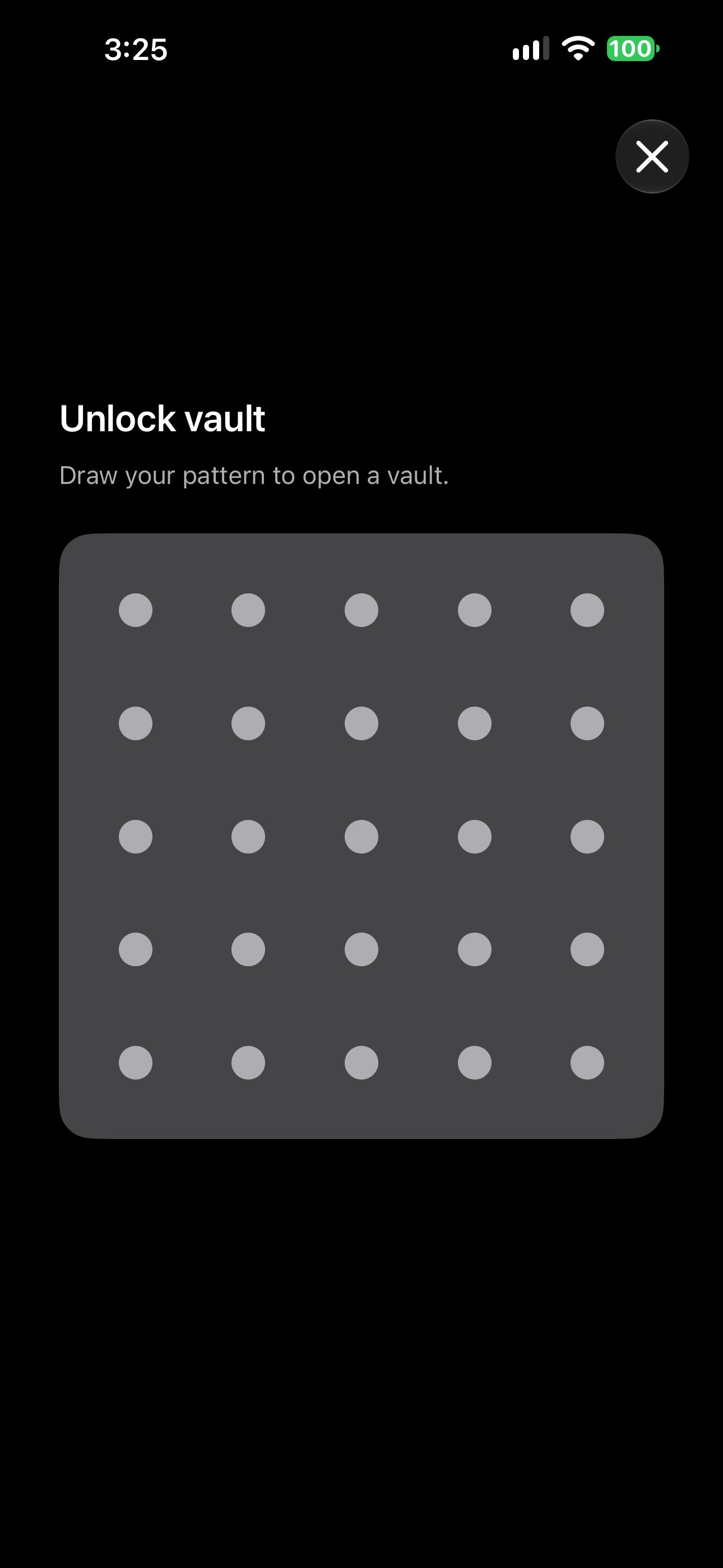
A familiar gesture. A separate way into each space.
Encrypted on your iPhone and under your control.
YOUR SPACE, SIMPLIFIED
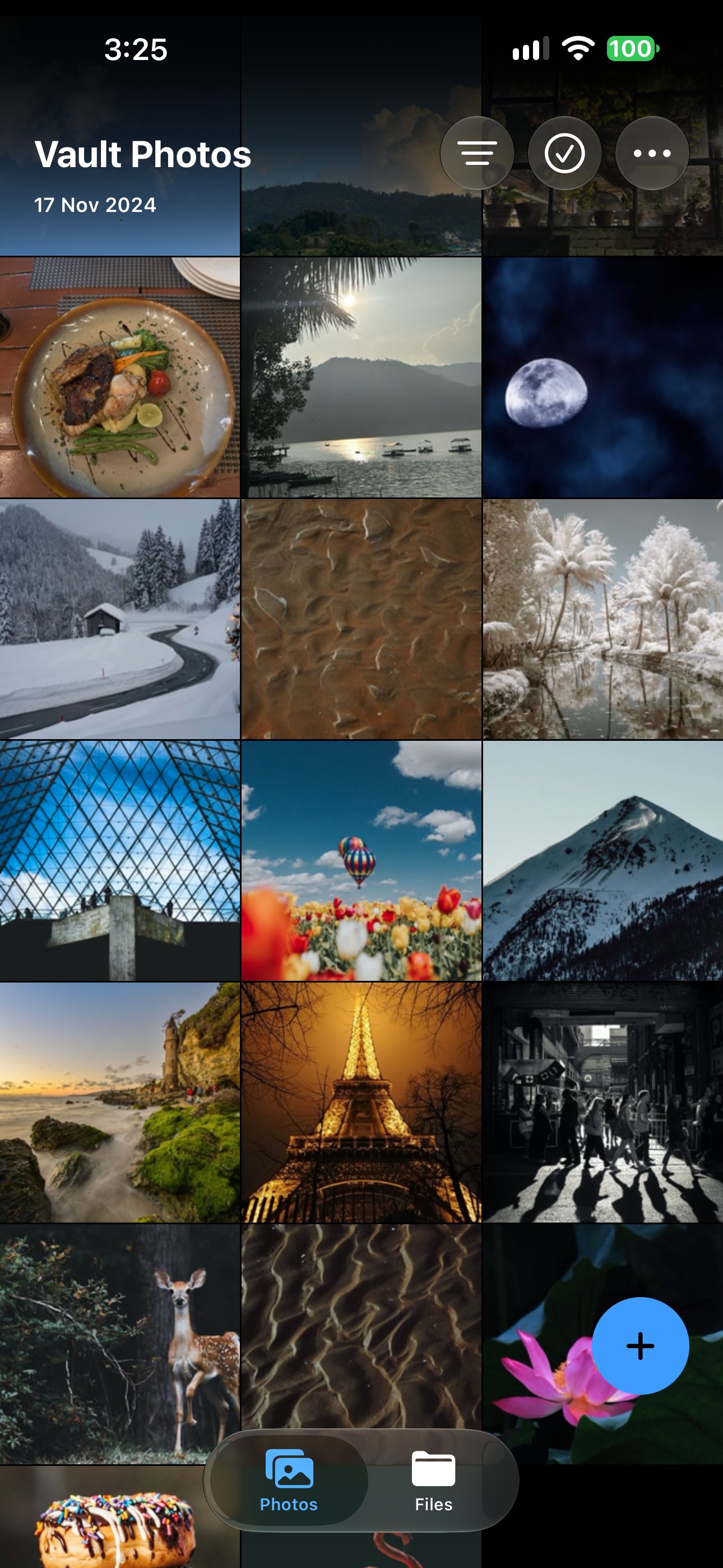
Keep photos, videos and files together, with a place for the everyday and the important.
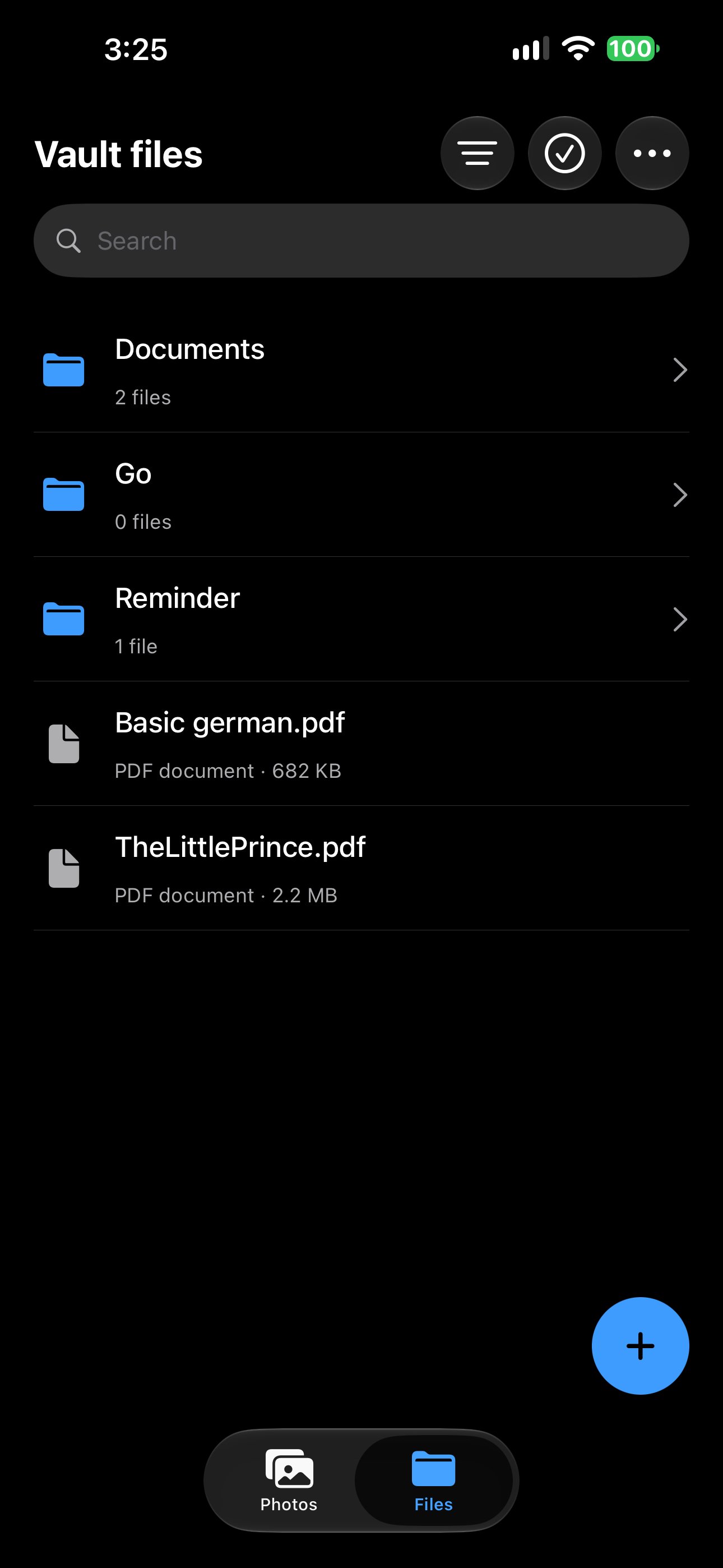
Create folders, search filenames and find the document you were looking for.
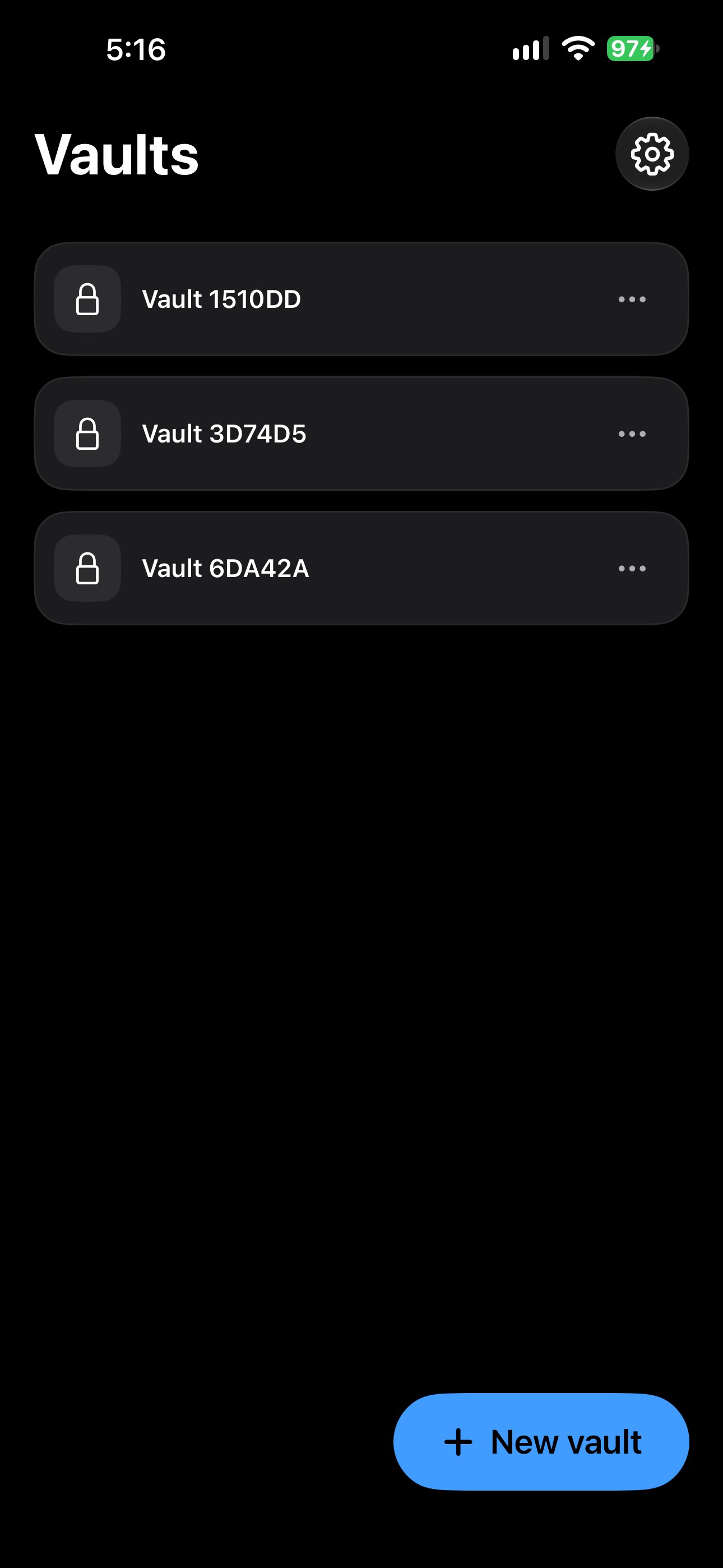
Give each vault its own pattern. One familiar gesture opens your private space.
Hide a vault from your list. Its pattern opens it again, while keeping it hidden.
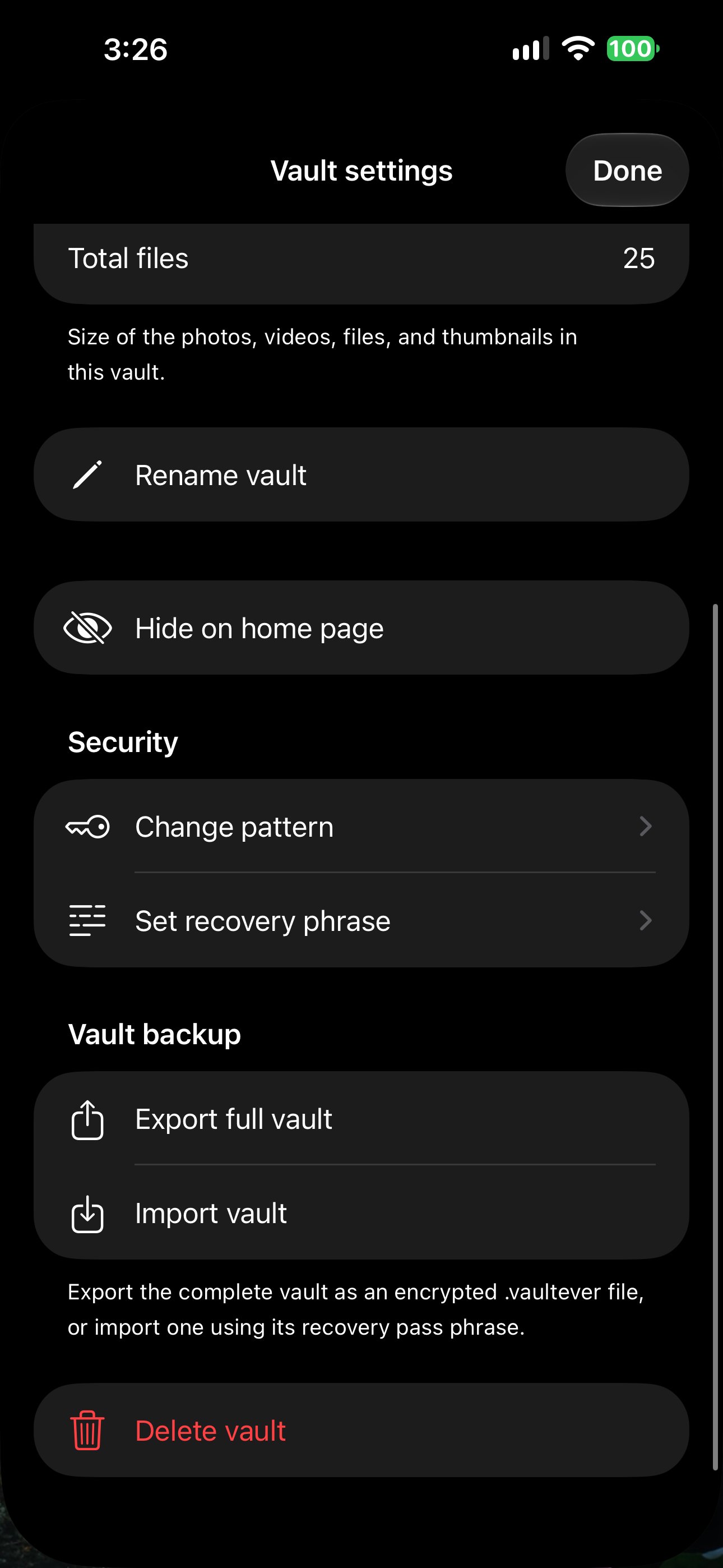
Save a recovery phrase ahead of time, for the moments your memory needs a hand.
Export and restore a full vault as one encrypted .vaultever backup file.
PRIVACY, IN THE EVERYDAY
Some things don’t need to be on display. Hide a vault from your list and open it again with its pattern. When you leave the app, vault access clears.
HOW IT WORKS
Create a vault, add what matters, and choose how you protect it. Here’s the everyday flow, from your first pattern to a safe backup.
Tap + and connect at least 6 dots on the 5 × 5 grid. Draw the same pattern again to confirm.
Each vault has its own pattern. Choose one that is hard to guess and keep it private.
Inside your vault, tap + to import photos, videos or files. Vaultever stores encrypted copies on your iPhone.
Use Photos to browse moments, or Files and folders to organize documents.
Open Vault settings → Set recovery phrase. Create or generate a phrase and save it somewhere safe outside the vault.
The phrase is shown when you save it. Vaultever does not keep a readable copy to show you later.
EVERY TIME YOU RETURN
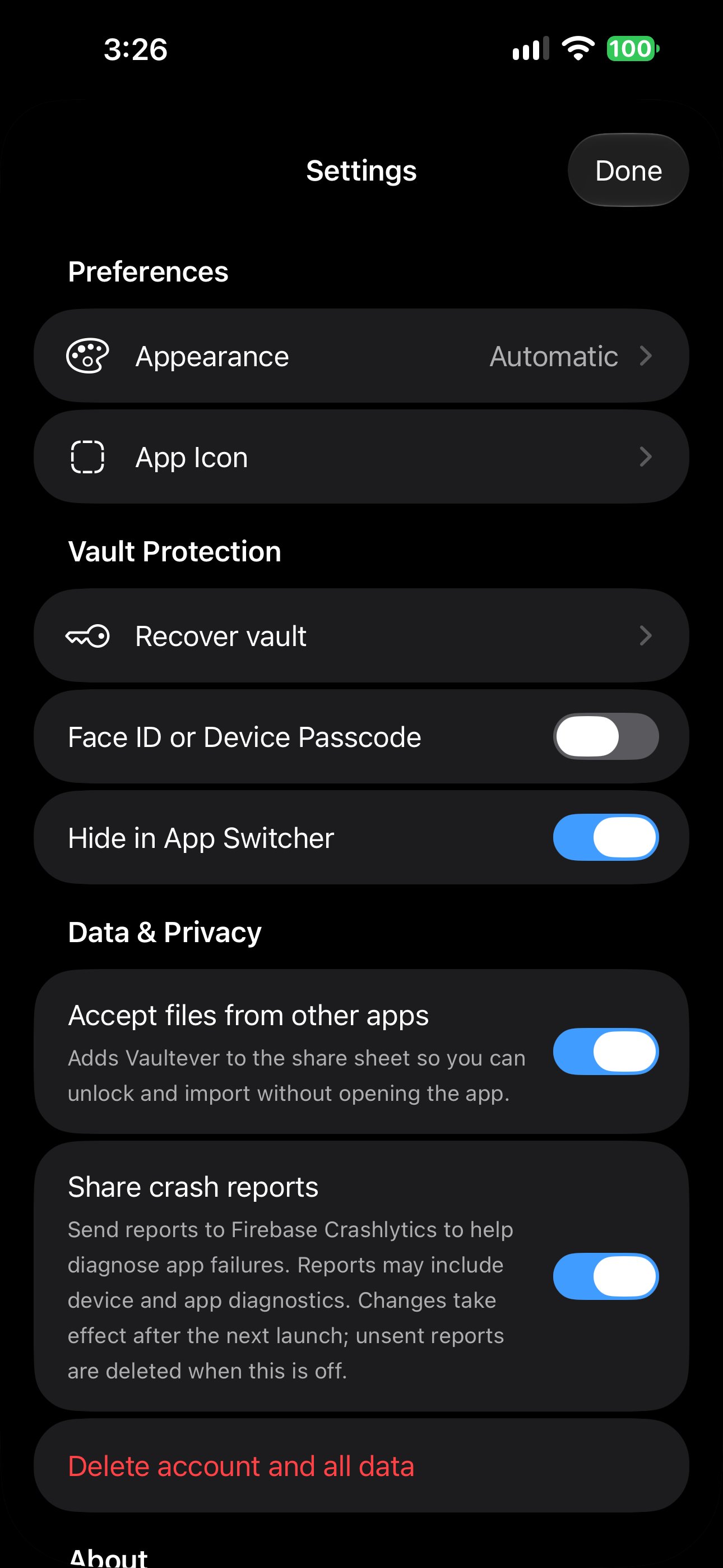
Add an extra app lock with Face ID or your device passcode. Your vault still needs its own pattern.
In Vault settings → Vault backup, choose Export full vault. A saved recovery phrase is required. The result is one encrypted .vaultever file.
To restore, choose Import vault and enter the recovery phrase used when that backup was created. Keep the backup and phrase in separate safe places.
Changing your recovery phrase does not change older backups.
Importing does not remove originals from Photos or Files. Review those copies separately if you want them removed.
A saved phrase opens an existing or restored vault. It cannot recreate deleted files. Without the pattern or saved phrase, support cannot reset access.
Exporting a photo or file creates a readable copy outside the vault. Full-vault .vaultever backups remain encrypted.
SECURITY, EXPLAINED CLEARLY
Your vault copies are encrypted on your iPhone. Here’s what protects them, how your pattern fits in, and what stays in your control.
For local vaults on this device
Encryption turns readable files into scrambled data. The correct key turns that data back into the photos and files you recognize.
A photo, video or document on your iPhone.
Stored as scrambled data on your device.
Your pattern unlocks the vault key so the app can open your files.
Photos, videos, files, filenames and thumbnails are encrypted in vault storage. The app reads them when you unlock the vault.
Each vault gets a random 256-bit key. Your pattern is processed with Argon2id to protect that key. Your pattern is not saved as readable text.
Argon2id adds work to each guess. A simple or observed pattern is still easier to guess.
AES-GCM checks encrypted data before opening it. If protected data has been changed, the integrity check fails instead of returning altered content.
Leaving the app clears vault access. The app releases active keys and clears decrypted previews.
Optional Face ID or device passcode protects entry to the app. Your vault still needs its own pattern.
Hide in App Switcher is on by default. It covers the app preview. It does not prevent screenshots.
Independent security audit: not yet completed.
Originals stay where they were. Importing makes an encrypted copy. Originals in Photos or Files remain outside the vault.
Individual exports are readable copies. Exported photos and files leave vault protection. Full-vault .vaultever backups stay encrypted.
Local does not mean no backups. Local vaults need no iCloud. Encrypted app data may be included in device backups.
Crash reports are your choice. Firebase Crashlytics is on by default and can be turned off in Settings. Reports may include device and app diagnostics.
Photos, videos and files. Keep personal media and documents together in encrypted vaults on your iPhone, with folders to organize your files.
No. Vaultever creates encrypted vault copies. Originals stay in Photos or Files, and deleting a vault copy does not delete the original. If you want to remove originals, review them separately, including any Recently Deleted folders or synced copies.
If you saved a recovery phrase beforehand, open Settings → Recover vault and enter it. Your vault data must still be on this device or restored from a backup. Without the pattern or a saved recovery phrase, support and iCloud cannot reset vault access.
No. Local vaults work on your device without an iCloud requirement. Your encrypted app data may be included in device backups. You can also export a full vault as an encrypted .vaultever file using its saved recovery phrase.
Vaultever uses AES-256-GCM through Apple CryptoKit for authenticated encryption. Argon2id processes your pattern to protect a randomly generated vault key. Vault file contents, names and thumbnails are encrypted. The security section explains the details and limitations.
No. Optional Face ID or device passcode adds a lock to the app. Each vault still requires its own pattern. Hide in App Switcher covers the app preview, but does not prevent screenshots.
When enabled, Firebase Crashlytics receives crash reports that may contain device and app diagnostics. Crash reporting is on by default. Turn off Share crash reports in Settings to disable it; unsent reports are deleted when disabled. The app’s diagnostic logging excludes vault names, filenames, patterns and recovery phrases.
Vaultever is coming to iPhone. We’ll link to the App Store here when the app is available.
A LITTLE SPACE. JUST FOR YOU.
Your photos. Your files. Your peace of mind.
Vaultever is coming to iPhone. This page will link to the App Store when it’s ready.